Showing posts with label open source. Show all posts

2018-03-11

Debian

debian
More than 3 months ago, I posted about my Fedora installation in my desktop computer, and it's smooth sailing since then.  It replaced my erstwhile perfectly running Ubuntu box for 12 years already, just out of curiosity.  OK, admittedly I tried Fedora because I read somewhere that Linus Torvalds, the creator of Linux is using the OS personally.  He also mentioned that he doesn't like Debian because it was difficult to install with its many options, or something to that effect.  Well, it was this last statement that got me thinking into going back to my very first open-source OS... what else... Debian GNU/Linux (now just called Debian)!  That was Debian 3.0 (Woody), way back in 2002.

Four years later (2006), I wrote something on how I got and installed Ubuntu 6.06 on my desktop.  It was so easy because they provided free live CDs!  It was no surprise that Ubuntu is based on Debian, and the former just made it easier to use the latter.

Debian 9 screenshot
Debian 9 overview screenshot
It's good to always return to our roots.  So, I'm back (for good) in debian... it's now Debian 9 (Stretch) using kernel 4.9.0-4-amd64.  The screenshot looks familiar because it also uses GNOME (3.22.2) desktop environment by default.  The user experience is great!

When I got this computer several years ago, it had Windows already installed so I had to install Linux in another partition.  Using the same hardware, linux loads several times faster, and appears more secure and stable.  I don't know if it's the usual, but I don't have any antivirus program running, and nothing seems to matter.  With its more than 21,000 source packages [51k in 2018], the available Debian software can meet almost any need that one could have, whether at home or in the enterprise.  Debian is and will remain composed entirely and exclusively of free software.  All software development within the Debian project, itself, will be free [taken from The Debian Administrator's Handbook].

"Live as free men, yet without using your freedom as a pretext for evil; but live as servants of God." (1 Peter 2.16 RSV)

2017-12-23

Fedora 27

Fedora 27 overview screenshot
I installed Fedora 27 Workstation edition in my desktop computer last December 1, and it's still running without any glitches for a few weeks now.  It has gone through several updates and it's presently using the 4.14.7 kernel version.  I tried this Linux distribution, replacing my Ubuntu box just from curiosity.  Ubuntu is running perfectly though and it's a very good Linux distribution, if one may inquire.

I noticed immediately that Fedora updates opaquely (somewhat like Windows), as opposed to Ubuntu where updates are installed and presented in a separate window.  In Fedora, the computer has to restart or shutdown first before updates are applied.  This is okay with me but others may not be (I guess this behavior can be tweaked).  It uses GNOME (version 3.26.2) as default environment, same as in Ubuntu.

"The truth will make you free."
~Jesus (John 8.32 RSV)

2012-02-29

Away From The Usual Word-Processor

If you ask someone to write an article or a report, chances are a word-processor (OpenOffice, Word, etc.) will be used. Of course they offer the WYSIWYG convenience of instant gratification. But there's a pitfall: formatting. This may not be a problem (especially for power-users) but for some, it's a nightmare to have to spend a lot of time tweaking it! I think this problem is common in academic institutions—people just differ in their preferences.

Mark-up language developers (e.g. HTML) have noticed this and separated the data and the formatting. Thus, CSS was invented (latest version is CSS3) just to take care of the formatting. A web writer just takes care of the content. Well, another typesetting mark-up language is LaTeX—all you need to do is write and the formatting becomes automatic. Admittedly, LaTeX beginners need to read a lot initially, but this pays-off later when all you worry about is the content.

Lifting from its website: “LaTeX ('X' pronounced as 'K') is a high-quality typesetting system; it includes features designed for the production of technical and scientific documentation. LaTeX is the de facto standard for the communication and publication of scientific documents.” The program can output many kinds of files, but what I use is PDF (readily viewed with many Document/PDF viewers, including Adobe® Reader).

There are many LaTeX documentations on-line and several tutorials are available. I made a TEX file (text file with a .tex at the end) below that incorporates a mini-tutorial. One can use this file because the notes are commented out (preceded by a '%' symbol). Download template.tex file...
% template.tex - LaTeX template source file
% Mini-tutorial incorporated as comments
%   uncomment, comment-out or modify as necessary
%   (my LaTeX program accepts all these commands; check your
%    LaTeX syntax & documentation if error messages appear.)
%
\documentclass[14pt, letterpaper, english]{extarticle}
% \documentclass[12pt, letterpaper, english]{article}
%   {article} only allows 10 (default), 11 and 12pt sizes
%   {extarticle} is used for larger fonts sizes
% alt classes: {book, letter, report, thesis ...}
% alt option: [twoside] = for 2-sided document (odd, even numbered page)
%
% Some packages here are default in Texmaker
%   (http://www.xm1math.net/texmaker/)
% In my computer (Ubuntu), installing texmaker automatically installs
% other required packages.  However, some computers need to have perl
% (http://strawberryperl.com/ for Windows) and TeX Live
% (http://www.tug.org/texlive/acquire-netinstall.html) installed.
%
\usepackage[utf8x]{inputenc}    % encoding
\usepackage{times}
\usepackage[letterpaper, top=2cm, bottom=2cm, left=2cm, right=2cm]{geometry}
%   comment-out to use the default page geometry/layout
%   alt option: [landscape]; [portrait] is default
\usepackage{mathptmx}     % scalable fonts (similar to {times}) in MATH mode
\usepackage{ucs}
\usepackage{amsmath}
\usepackage{amsfonts}
\usepackage{amssymb}
\usepackage{babel}              % formatting
\usepackage{graphicx}           % importing EPS graphics
\usepackage{ulem}               % use underline in text
% \usepackage{lscape}           % allow selective {landscape} environment
% \usepackage{multicol}         % uncomment if {multicolumn} command issued
% \usepackage{multirow}         % uncomment if {multirow} command issued
% \usepackage{fancyhdr}         % customize headers/footers
%   \pagestyle{fancy}           % used with {fancyhdr}
% \usepackage{setspace}         % change line spacing
% \usepackage{alltt}            % to use {verbatim} with commands enabled
% \usepackage{moreverb}         % uncomment if {listing} env is used
% \usepackage{wrapfig}          % wrap figures; caution: not a float
% \usepackage{natbib}           % alt bibliography package
%   \bibpunct{[}{]}{;}{s}{,}{,} % ancillary to {natbib}; alt to {s}: {n}, {a}
%
\usepackage[pdftex]{hyperref}   % allow hypertext
  \hypersetup{
    pdfauthor={NAME},
    pdftitle={PDF \LaTeX{}},
    colorlinks,
    pdfpagelayout={OneColumn}}
%     add {backref} if with bibliography backlinks
%
%
% \DeclareMathSizes{ds}{ts}{ss}{sss} % change font sizes in Math mode
%   {ds} must be the same size as the document font
%
\title{TITLE}
\author{NAME \\                   % \\ = newline character
\texttt{EMAIL}}                   % additional AUTHOR data
\date{\today}                     % insert DATE today
%
%
\begin{document}
\normalem                         % \emph{} = italicized, not underlined
%
% \maketitle                      % place TITLE data on document
% \thispagestyle{empty}           % suppress paging for this page only
% \tableofcontents                % insert TOC
%   \setcounter{tocdepth}{depth}  % set depth (default: 3)
% \listoffigures                  % insert list of figures
% \listoftables                   % insert list of tables
%
% DIVISIONS
%
% \division{header}               % syntax
% \division*{header}              %   div numbers omitted
%
% Divisions:
%   section, subsection, subsubsection  % class article, extarticle
%   Others:                             % other classes
%     part, chapter                     %   higher levels
%     paragraph, subparagraph           %   lower levels
%
% To include unnumbered entries in TOC (not included by default):
% \division*{header}                    % syntax; lines bunched together
% \addcontentsline{type}{section_level}{entry} % to reinstate a line in TOC
% \phantomsection                       % used to build links in TOC
%   Example:
%   \section*{Preface}                       % unnumbered section
%   \addcontentsline{toc}{section}{Preface}  % place at appropriate location
%     of section/figure/table in document in order for it
%     to be extracted in the correct order in the TOC.
%   \phantomsection
%
% ENVIRONMENTS
%
% \begin{ENVIRONMENT}                         % syntax
%   ...                                       % content
% \end{ENVIRONMENT}
%
% Environments:
%   abstract                                  % insert Document Abstract
%   flushleft, flushright, center             % Justification
%   singlespace, onehalfspace, doublespace    % Line spacing
%   landscape                                 % Page Orientation
%   quote (short quotes), quotation (longer quotes/more indent)
%   verse (poetry)                            % \\ to break a line
%   verbatim, alltt (verbatim + enabled commands)
%   listing (+ line numbers in verbatim; eg: \begin{listing}[step]{1st line})
%
% LIST STRUCTURES
%
% List environments      % can be nested up to depth = 4
% \begin{itemize}        % bulleted; \begin{enumerate} for ordered list
%   \item item 1
%   \item item 2
% \end{itemize}          % or \end{enumerate}
% \begin{description}    % similar to glossary
%   \item[entry] item 1
%   \item[entry] item 2
% \end{description}
%
% TABLE
%
% Table environments/commands:
%   \multicolumn{spanned columns}{format}{cell contents}  % syntax;
%              % used in merging columns
%              % if associated with {figure}, use {figure*} to span columns.
%   \multirow{spanned rows}{*}{cell contents}             % syntax
%              % used in merging rows
%   \setlength{\columnseprule}{1pt}  % place before environment
%              % to have a line width of 1pt, e.g. (default = 0pt)
%   \setlength{\columnsep}{20pt}     % place before environment
%              % to change default separation of 10pt to 20pt, e.g.
% Example:
% \begin{table}[htp]  % table = float; [htp] = where LaTeX will place table:
%                     % h = here, t = page top, b = page bottom
%   \begin{center}    % center justified
%     \caption{table-title}                    % Title of table
%     \label{table-label}                      % anchor/label
%     \begin{tabular}{| l | c | p{5cm} |}      % lcr = cell justification;
%          % | = vertical line visible; p{5cm} = width is 5 cm in this column
%       \hline                  % horizontal line visible; & = cell-separator
%       contents & contents & more content \\  % \\ = newline
%       \hline
%       \multirow{2}{*}{contents} & \multicolumn{2}{|c|}{more content} \\
%          % \hline omitted to avoid overlap due to the multicolumns/rows
%       & content & This is a wrapping sentence. \\
%       \hline
%     \end{tabular}                            % 3x3 table
%   \end{center}
% \end{table}
%
% FIGURE/GRAPHICS
%
% Example:
% \begin{figure}[htp]  % figure = float; h = here, t = top, b = bottom of page
%   \begin{center}                  % center justified
%     \includegraphics{image}       % image: EPS for latex command
%                                   % JPG, PNG, PDF for pdflatex command
%   \end{center}
%   \caption{caption text}          % optional caption
%   \label{image-label}             % optional anchor/label
%                      % use of label: text can reference it like so...
%                      % ... See figure~\ref{image-label} for reference...
%                      % alt: \pageref{}  % reference page (not figure)
% \end{figure}
%
% Wrap text around a figure:        % caution: not considered as float
% \begin{wrapfigure}{r}{40mm}       % {wrapfigure} replaces {figure}
%   ...                             % can run over a page break
% \end{wrapfigure}                  % check final document because of above
%
% FORMAT
%
% \emph{emphasis/italic}  \textbf{bold}           \texttt{teletype}
% \textsc{small caps}     \textsf{sans serif}     \textrm{serif}
% \uline{underline}       \uwave{wavy underline}  \sout{strike-out}
%
% - (hyphen)              -- (en-dash)             --- (em-dash)
% `single quotes'         ``double quotes'' or "  \\ (newline)
% \& (&)                  \% (%)                  \$ ($)
% \# (#)                  \{ \} ({})              \_ (_)
% ~ (nbsp)                \ldots (ellipsis)       \textbar (|)
% \textbackslash (\)      \textless (<)           \textgreater (>)
% \textregistered         \copyright              \pounds
% \LaTeX{}                \dag (dagger)           \`{a}
% \"{o}                   \^{o}                   \r{A}
% \'{e}                   \~{n}                   \.{o}
% \c{c}
%
% White space:
% \quad = font size       \qquad = double quad    % horizontal space
% \, = small space (1/6 quad)
% \: = medium space (2/9 quad)
% \; = large space (5/18 quad)
% \! = negative space (-1/6)
% \vspace{width}                         % vertical space
% Example:
% \vspace{\baselineskip}                 % vertical space between paragraphs
%
% Size:                                  % should be used rarely
% \tiny                   \scriptsize             \footnotesize
% \small                  \normalsize             \large
% \Large                  \LARGE                  \huge
% \Huge
%   % in case where size format continues, insert \normalsize
%   % so that succeeding text is back to default
%
% Other formatting commands:
% \newline              % or \\; breaks line
% \linebreak[number]    % breaks line + stretch line to the margin;
%                       % [number]: 0-4, with 4 as most insistent
%                       % seems LaTeX has final say
% \newpage              % ends current page
% \pagebreak[number]    % breaks current page
% \nopagebreak[number]  % stops automatic page break
% \clearpage            % ends page + pending floats will be printed
%
% NOTES
%
% \footnote{footnote text}   % insert footnote
% \thanks{title-footnote}    % insert footnote within \title
% \marginpar{marginal text}  % few characters (may overflow)
% \cite{name01}              % insert to mark bibliography reference, e.g.
%                            % alt: \citep, \citet, \citep*, \citet*
%
% CUSTOMIZE
%
% Headers/Footers:
%
% \fancyhead{}            \fancyfoot{}            % insert at the beginning
% \lhead[even page]{odd page} \lfoot[even page]{odd page}
% \chead[even page]{odd page} \cfoot[even page]{odd page}
% \rhead[even page]{odd page} \rfoot[even page]{odd page}
%                                   % put header/footer data within [] and {}
% Input data examples:
% \today = date today           \thepage = page number
% Example:
% \cfoot[\thepage]{\thepage}        % put page number in all pages (default)
%
% Redefining Counter styles:
%
% \renewcommand{\thefootnote}{\alph{footnote}}
%                              % redefine default \footnote to use lower case
% \renewcommand{\theenumi}{\Roman{enumi}}    % redefine enumerate 1st level
% \renewcommand{\labelenumi}{\theenumi}
% \renewcommand{\theenumii}{\Alph{enumii}}   % redefine the 2nd level
% \renewcommand{\labelenumii}{\theenumii}
% \renewcommand{\labelitemi}{symbol to use}  % redefine itemized labels
%                                        % alt: arabic, alph, roman, fnsymbol
%
% HYPERTEXT
%
% Hyperref:
% \href{URL}{linked text}                % similar to HREF in HTML
% \url{URL}                              % url is shown/linked
% \nolinkurl{URL}                        % url is shown and NOT linked
% \hyperbaseurl{URL}                     % set base url
% \hyperlink{id}{link to target text}    % link within document
% \hyperref[label]{linked text}          % similar to \hyperlink, \ref{label}
% \hyperimage{image-URL}{linked text}    % link to image-url
% \hypertarget{id}{anchor/target text}   % target text
%
% MATHEMATICS
%
% \begin{math}...\end{math}                 \(...\)   $...$    % text type
% \begin{displaymath}...\end{displaymath}   \[...\]   $$...$$  % displayed type
% \begin{equation}...\end{equation}      % alt to {displaymath}
%                                        % equation numbers printed
%
% Commands:
% \times                  \div                    \frac{}{}
% ^{} = power             _{} = index             \sqrt[]{}
% \left(...\right)              % scalable parentheses; (...) = non-scalable
% \mbox{}                       % put text in equations
%
% alt to \mbox{} (can be wrapped around equation):
% \mathrm{}               \mathit{}               \mathbf{}
% \mathsf{}               \mathtt{}               \mathcal{}  % (calligraphy)
%
% Predefined math text sizes:               % sizes decrease
% \displaystyle           \textstyle              \scriptstyle
% \scriptscriptstyle
% Example:
%   \frac{1}{\scriptstyle a_1...}           % denominator is smaller
%
% Matrix:
% $$ \left[                                 % scalable [
%   \begin{array}{ c c }                    % 2x2 matrix
%      1 & 2 \\                             % similar to {tabular} environment
%      3 & 4
%   \end{array} \right]                     % scalable ]
% $$
%
% Equation arrays:         % use for multi-line equations + equation numbers
% \begin{eqnarray}         % use {eqnarray*} to disable equation numbers
%   left expression & = & right expression 1 \\
%   & = & right expression 2 \nonumber \\   % \nonumber = no equation number
%   & = & right expression 3
% \end{eqnarray}
%
% BIBLIOGRAPHY
%
% \bibliographystyle{plain}                 % default linked bibliography
%   \bibliographystyle{plainnat}            % uncomment if {natbib} is used
%   latex makebst: command to make own bibliography style
% \bibliography{/PATH/to/the/bibliography/folder}
%
% Example of linked bibliography:  % placed in a BIB file in bibliography PATH
% @book{name01,                             % used in \cite{}
%   author    = "Surname, First Name",      % author
%   title     = "{T}itle",     % title; {T} = capitalized character (optional)
%   edition   = "Edition",                  % edition
%   year      = "2012",                     % year published
%   publisher = "Publisher Data",           % publisher
%   address   = "Address of Publisher"      % publisher address
% }                   % add other entries as necessary using the same pattern
%                     % entries should be separated by blank lines
%
% Example of embedded bibliography:
% \begin{thebibliography}{9}                % embedded in TEX file
%                                           % 9 = maximum number; alt: 99, 999
%   \bibitem{name01}                        % used in \cite{}
%   NAME,                                   % author
%   \emph{TITLE}.                           % title
%   Publisher Data,                         % publisher
%   Nth Edition,                            % edition
%   2012.                                   % year published
% \end{thebibliography}
%
% NOTES
%
% Save TEX files in own folders/directories, with referenced files.
% Running pdflatex in console:
%   $ cd /directory/where/TEX/file/resides
%   $ pdflatex file           # file.tex (.tex is dropped)
%           # that's enough for simple files
%           # large files with many references may require at least 2 passes
%           # check the text output if more passes are required
%           # files with bibliographies may require an additional command:
%   $ bibtex file             # usually issued second
%                             # bibliography file (file.bib) must be present
%                             # at '/PATH/to/the/bibliography/folder'
%   $ pdflatex file           # repeat command as necessary (maybe up to 2x)
%   A file.pdf will be generated in the directory
%
% If you prefer running latex in console:
% replace 'pdflatex' with 'latex', but a file.dvi is generated.
% To make a PDF file, issue the command:
%   $ dvipdf file.dvi file.pdf
%   A file.pdf will be generated in the directory
%
% For LaTeX developers: why not issue only ONE command,
%   and let the program do all these other repeated commands?
%
% Check: http://www.latex-project.org/, Google, etc. for more information.
%
% Start typing and let LaTeX do the formatting!
%%============================================================================%%

\LaTeX{} DOCUMENT

\end{document}
LaTeX is a good addition to the writer's arsenal. Let the writer write!

2012-02-18

Installing Ubuntu Via Internet

Installing or adding an operating system on a computer is very easy, as long as you have a working CD/DVD drive or bootable USB device, and the OS (in a CD/DVD or USB stick). What if you have a broken CD drive, non-bootable USB device, or perhaps a very old computer? One alternative is to install the OS (Ubuntu in this case) via the Internet. This is easy as long as the two computers (working PC = PC1, and the computer for installation = PC2) are in the same subnetwork (subnet). In this article, PC1 is a working desktop PC (dual boot with Windows XP and Ubuntu), while PC2 is a vintage Compaq Presario M2000 laptop with a problematic XP installation (pesky Windows behavior).

Ubuntu 11.10 desktop
In Ubuntu (or a similar Debian distribution), one can read its Netboot install page. On my part, I used the Windows version because many use it, and I have a Windows partition anyway just to put it into good use. This article is based from a work in Liberiangeek.net which came out after googling the topic. Because it was based on Ubuntu 10.04, I modified some things for this purpose. So someone who reads this material in the future must modify it because Ubuntu is a dynamic project—2 upgrades per year.

One indication that the 2 PCs are in the same subnet is that the Internet cable (connected to WiFi) is forked and wired in the router (although I guess the wireless devices are likewise in the same subnet). It's hard to explain here but one may go to the Subnetwork topic in Wikipedia to learn about subnets, and also to determine if the 2 computers you're using are in the same subnet.

Procedure


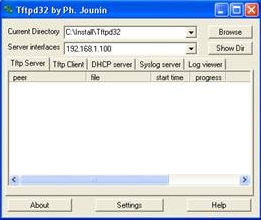
Create an Install folder (or any name you prefer) in the root directory, or at C:\. You should now have a folder C:\Install\. Download tftpd32 standard edition (installer) from tftpd32.jounin.net, and install it. In the installation options, choose Installation and Start as the type of install, and check all the checkboxes. Choose C:\Install\ as the installation directory before clicking Install.

Tftpd32 contents
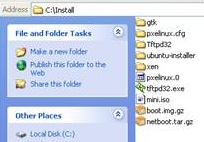
Install contents
To fetch the needed files, it's convenient to use an FTP program and input archive.ubuntu.com as host. For me, I just went directly to the appropriate folder and downloaded the files to C:\Install\. When I did this installation, Oneiric was the latest stable release, so I entered /ubuntu/dists/oneiric/ main/installer-i386/ 20101020ubuntu72/images/ netboot/. This url will be obviously different in the future (even by a few days ahead). The article I was referencing mentioned that I only download pxelinux.0, pxelinux.cfg\ and ubuntu-installer\, but I downloaded all files and folders there.

Open C:\Install\Tftpd32\ and copy tftpd32.exe into C:\Install\. See image for the contents of the two folders (pxelinux.cfg\, Tftpd32\, ubuntu-installer\, pxelinux.0, and tftpd32.exe are required in C:\Install\).

Tftpd32
DHCP Settings
If it's not running, open C:\Install\tftpd32.exe. Click the Settings button below and select the DHCP tab. Configure the network settings (see figure). I noticed that the server interfaces are automatically set so they vary in different PCs. The tricky part here is that you input the appropriate numbers based on the Server interfaces. Determine which fields you increment and which you preserve. Then click OK.

The moment of truth: power on PC2 and don't forget to tap F10 before booting the system. This enters the PhoenixBIOS Setup Utility in my machine. In the Advanced menu, enter Boot-order and modify it to put Network Adaptor on top. Then input F10 to save and exit the setup. It will then boot via the network PXE. Follow the boot instructions, and in a few hours you'll have a working Ubuntu system. When the time comes for you to reboot the new OS, enter the BIOS utility again just to put things in order, meaning the boot from hard disk option must be on top. Save the settings and boot from the hard disk.

Because it's a fresh install, do the initial housekeeping so as to enjoy Ubuntu's full potential.

“One of the sayings in our country is Ubuntu — the essence of being human. Ubuntu speaks particularly about the fact that you can't exist as a human being in isolation. It speaks about our interconnectedness. You can't be human all by yourself, and when you have this quality — Ubuntu — you are known for your generosity. We think of ourselves far too frequently as just individuals, separated from one another, whereas you are connected and what you do affects the whole World. When you do well, it spreads out; it is for the whole of humanity.” (Archbishop Desmond Tutu)

2006-11-15

Decriminalizing Libel

In a free world or democracy, it's been mentioned that the Media is the fourth estate. We need a free media in order to know the truth and also to guard our rights as people. We need courageous reporters and journalists to seek for this truth. But these people are not angels or other superior beings; they often make mistakes, and worse if these mistakes were deliberate. They can report on things that are not true at all! They can destroy the reputation of people, which can never be put back after a later apology. So what do people resort to? Only by filing criminal charges against the said writer or journalist. I don't agree with their arguments that such filing of charges are persecutorial or represent some kind of harrassment! This I think is just and reasonable.

I'm very much disappointed by the move of some sectors in trying to decriminalize libel. They should think again. If libel is not a crime, then these rouge writers will have all the fun, without the responsibility. Journalists (not all) are clamoring for this to happen; what are they up to? If the "victims" are not given an opportunity in court to seek justice, then I'm afraid that they will put things into their hands (a number of journalists and columnists were already murdered perhaps because they stepped on some powerful people's feet). I'm afraid that there will be more of these incidents! No... libel should remain a crime. It's actually a crime against justice and charity.


Use Open-source Software (11/11/06)

While trying to find the weather report on INQ7.net, I happen to click its Technology (Infotech) section, and Mr. Erwin Oliva's article Congress sets public discussion on open source legislation (last updated 10:51pm 11/10/2006) emerged. I perfectly agree that the use of free and open source software (FOSS) should be legislated for the good of the country for several reasons—the most tangible is the savings that will surely ensue.

This open-source movement was started in the 1980s, and was boosted in the 1990s with the introduction of the Linux kernel by Linus Torvalds in Finland, based on the UNIX platform. This movement began tentatively through the collaboration of several unnamed people, and it's now blossoming everywhere. Initially, only techies used it, but now even the uninitiated can use it. (There are several open-source platforms out there, but the most popular is Linux.)

Presently, several Linux platforms are available for use (e.g., try Ubuntu if you really want to get your hands dirty). Pinoy computer experts may someday even develop our very own operating system, especially with our hundreds of languages. Being tied to proprietary software, especially Microsoft is so frustrating. You can't do anything without having to buy their expensive products. So what do people resort to? They purchase pirated ones (MS is becoming more choking by preventing use of their software by such means). Note: I'm not promoting the use of pirated software; I'm just showing the way towards open software.

Not only do we become liberated from such monopolistic companies (freeing our pockets), but actually use genuine open software without restrictions, which are more flexible and uplifting to the mind. Ordinary people can learn to make their own software because many development features are incorporated with the package. If you try Ubuntu (e.g.) as I did, not only will you have the operating system, but also have built-in software including the now famous OpenOffice.org software (free counterpart of MS Office). Why use Windows when you can have the same functionality sans expense?

Kudos to Congressman Teodoro Casiño of Bayan Muna party who authored the bill; I often don't agree with his ideology, but this time I very much agree with him. I hope he'll work very hard to really pass this bill (House Bill number 5769).


Ubuntu Linux (10/28/06)

My very first encounter with computers was with the Apple II and the only way to use it was to know BASIC (PCs were called microcomputers then). That was way back in 1982. Later Microsoft was used specifically with DOS. I don't recall the exact dates but later I used MS Windows. All of these were machines used in the institutions I studied and worked in. The very first computer in the house was bought by my brother and it had Win95 and later Win98 installed. We occasionally installed some other versions (Me and 2000) but it always gravitated to Win98. Only recently was WinXP used.

In late 2002, I decided to try Debian GNU/Linux (kernel 2.2.20) mainly because Windows was very expensive, and also because Linux was nice and free. You only pay for the plastic (CD) and delivery. At that time, I had a hard time and I didn't even recommend it to others. You have to read a lot of documentation, but the more important side-effect was that I appreciated the inner workings of a computer. It also demanded that I use text mode more often (console) than GUIs. After a year or so, I backslid to using Windows again although my PC was dual-boot (can be booted with Windows or Linux). With some emails I received from a classmate of mine (UPCM '91), I decided to again dabble in Linux.

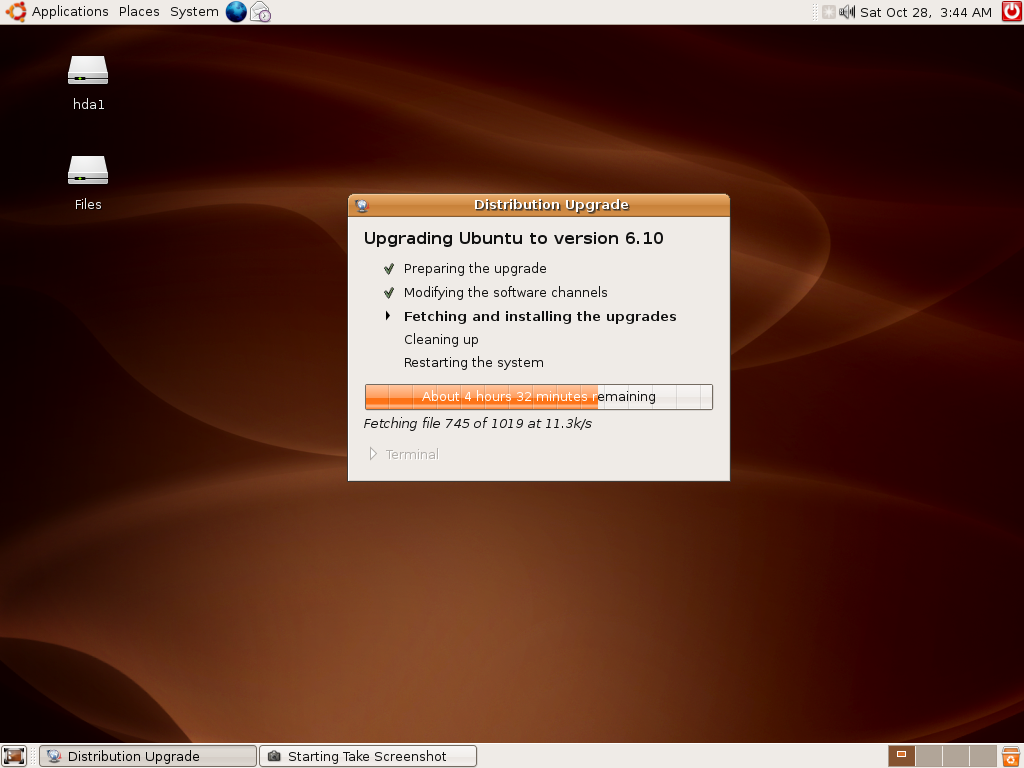
Using Google, I searched: "best linux distribution". The results were unequivocal. Ubuntu always popped up. So I went to its website and ordered Live CDs, and I was surprised that they were given for free, including the stamps! I then installed Ubuntu 6.06 (dual boot with WinXP), nicknamed Dapper Drake. A screenshot of its desktop is included here. It worked perfectly well: everything you can do with Windows, you can do in Ubuntu Linux. And everything is so easy. The picture below was taken while actually upgrading to the newer 6.10 version (called Edgy Elf). Everything was done while on-line, no need to buy a new CD!


After fetching all the needed files for the upgrade overnight (my broadband WiFi is very unreliable and erratic), a new version suddenly popped up (see screenshot below). It's now brighter and the sounds are much better. Everything was very nice. By the way, the desktop was GNOME, which some say looks like a Mac (I don't know if this is true because I never owned a Mac).


I never liked orange before but this kind of theme looks nice now. And maybe after 6 months, a new version will be available and I'll do the same routine as this one. Try Ubuntu; if you have only 1 PC, do a dual boot (disc has to be partitioned or sliced if only 1 HD is present). But I have to warn you that you have to read a lot. More on this later.